ManualInstallation.md 6.4 KB
Manual Installation Guide
Build SDWebImage as Framework or Static Library
For most user, to use SDWebImage, just need to build SDWebImage source code into a framework or static library.
For framework, you can choose to use Dynamic Framework (Link during runtime) or Static Framework (Link to the main executable file like Static Library).
It's strongly recommended to use Framework instead of Static Library. Framework can bundle resource and header files together, and have module map for clang module. Which make it easy to use.
And more importantly, Swift can only import the Objective-C code by using modular framework, or using the Bridging Header. (Bridging header contains its own disadvantage but this is beyond the topic).
Clone the repository:
git clone https://github.com/SDWebImage/SDWebImage.git
Then open the SDWebImage.xcodeproj.
Select the Build Scheme you need
SDWebImagefor dynamic framework. You can also change theMach-O TypetoStatic Libraryto build static framework inBuild Settings.SDWebImage Staticfor static library.SDWebImageMapKitfor MapKit sub component only.
Select Build Platform you need
My Macfor macOS platform.Generic iOS Devicefor iOS platform.Generic tvOS Devicefor tvOS platform.Generic watchOS Devicefor watchOS platform.- Simulator Device for Simulator platform.
Prepare for archive
If you want to build framework for Real Device, don't try to click Build (Command + R). Because by default it will use the DEBUG configuration, which is not suitable for production. It's mostly used for Simulator.
Instead, you can use Archive. But before we click the button, you need some prepare in the Build Settings.
Change the Skip Install to NO. Or the archived product will not contains any framework.
You can do this by modify the xcconfig file Module-Shared.xcconfig. Or you can change it using Xcode GUI.
SKIP_INSTALL = NO
Build the Framework or Static Library
Now, you can click the Archive button (Product -> Archive). After the build success. Xcode will pop-up the Organizer window.
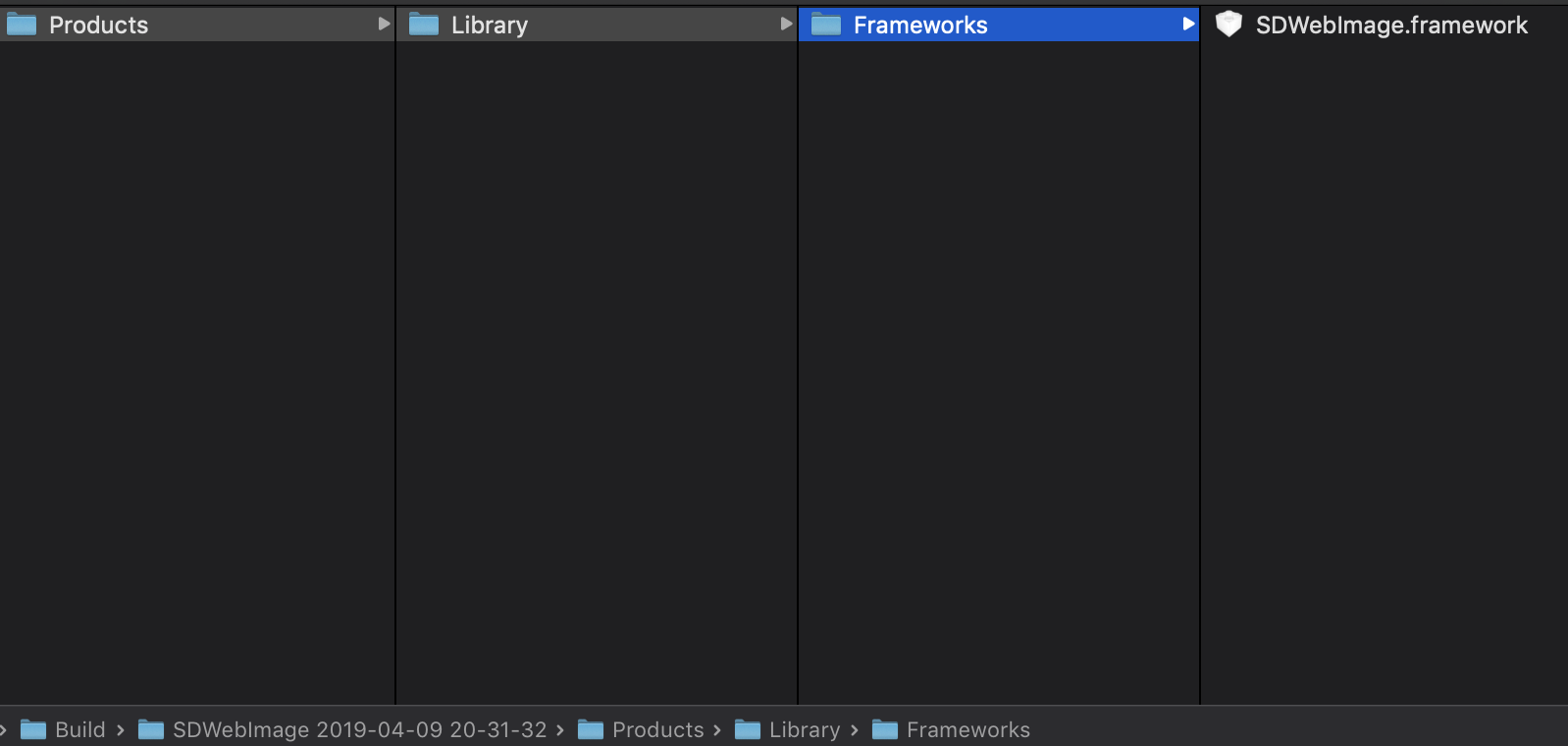
Click Distribute Content. Then ensure the Built Products is selected. Click Next and select a build folder your want to export. Click Export.
You can find a SDWebImage.framework, or libSDWebImage.a and the Headers Files inside the build folder.
Note for Universal (Fat) Framework
If you need to build Universal Framework (for Simulator and Real Device). You need some command line to combine the framework.
For example, if you already built two frameworks, iOS/SDWebImage.framework for iOS Real Device, Simulator/SDWebImage.framework for Simulator.
mkdir Universal/
cp -R iOS/SDWebImage.framework Universal/SDWebImage.framework
lipo -create Simulator/SDWebImage.framework/SDWebImage iOS/SDWebImage.framework/SDWebImage -output Universal/SDWebImage.framework/SDWebImage
For Static Library, just do the same thing.
mkdir Universal/
lipo -create Simulator/libSDWebImage.a iOS/libSDWebImage.a -output Universal/libSDWebImage.a
Link the Framework or Static Library to your project
Under your Project folder. You can create a Vendor folder to place the Framework or Static Library.
For Framework (Dynamic or Static)
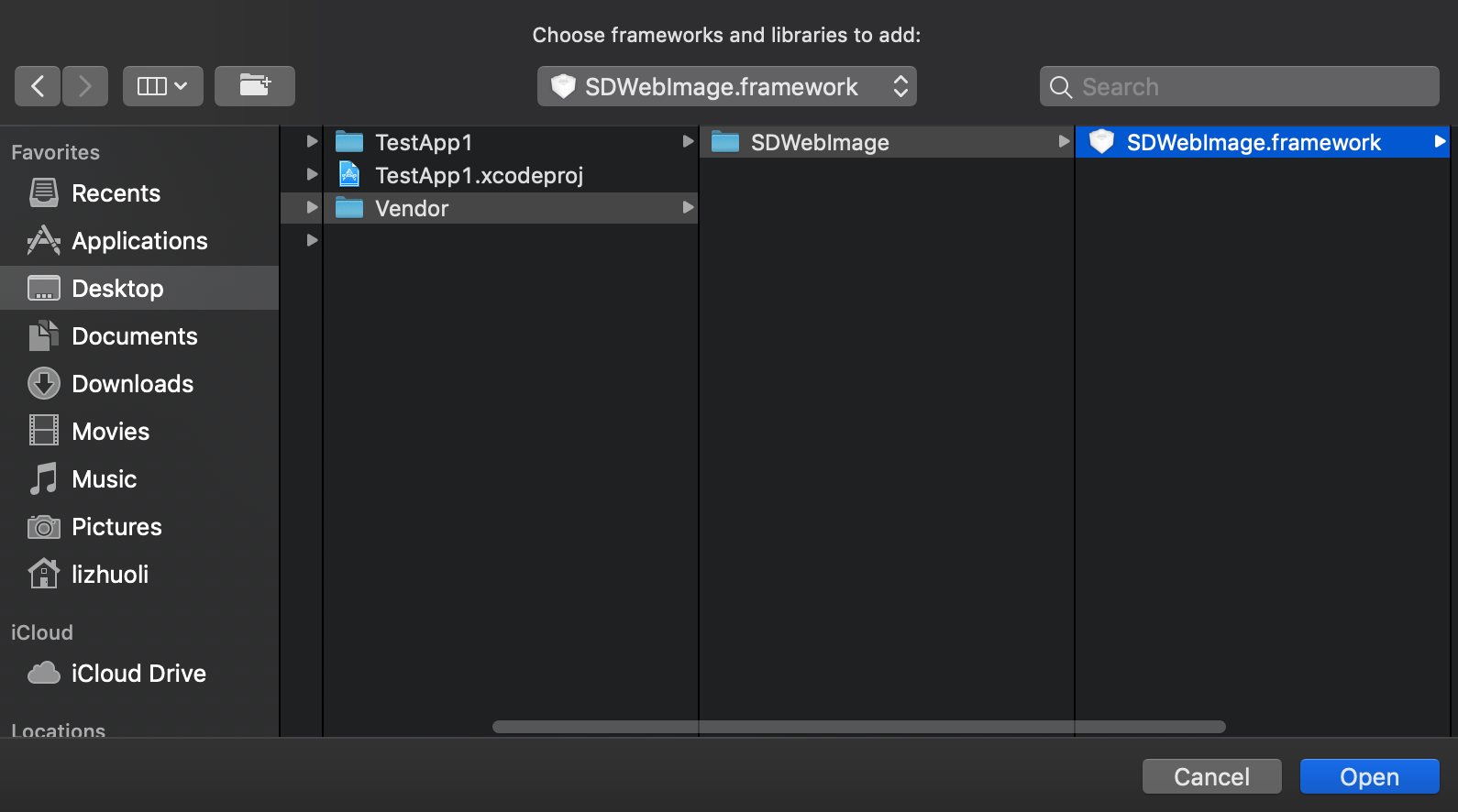
For Framework (Dynamic or Static), the Headers are inside the framework. Just copy the SDWebImage.framework into the Vendor folder.
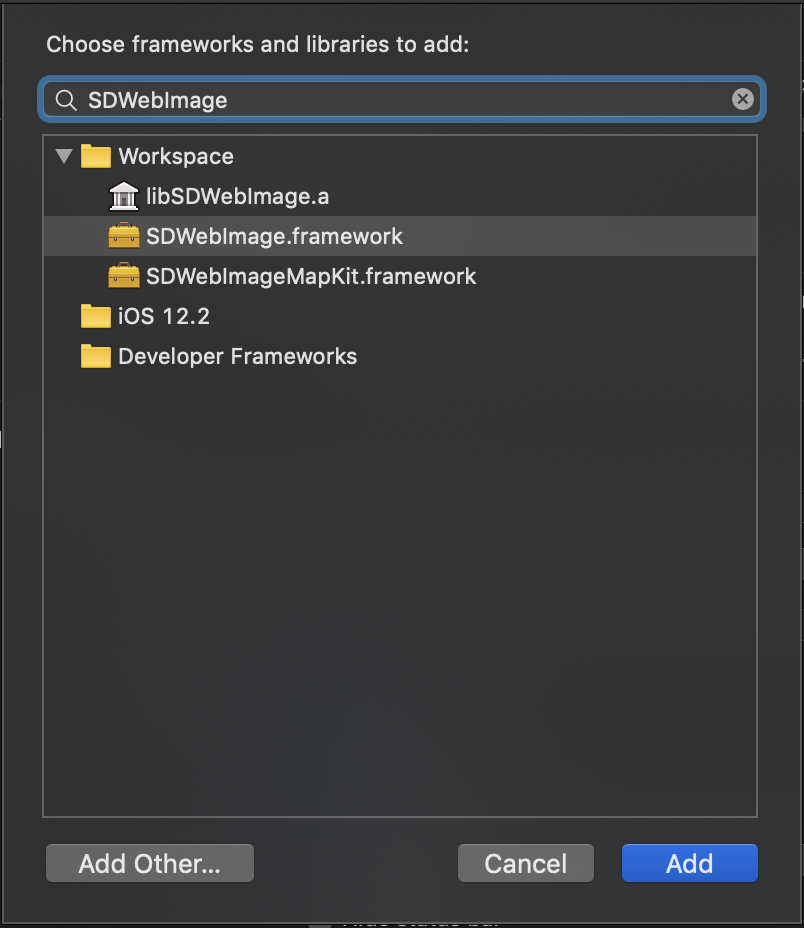
If your project is App project and using Dynamic Framework. You need to click Embedded Binaries. Select Add Other... and select the SDWebImage.framework. Xcode automatically add it into the Linked Frameworks and Libraries as well.
If not (Framework project or using Static Framework). Click
click Linked Frameworks and Libraries. Select Add Other... and select the SDWebImage.framework.
Then all things done if you use Framework.
For Static Library
For Static Library, you need copy both the libSDWebImage.a as well as the Headers into the Vendor folder.
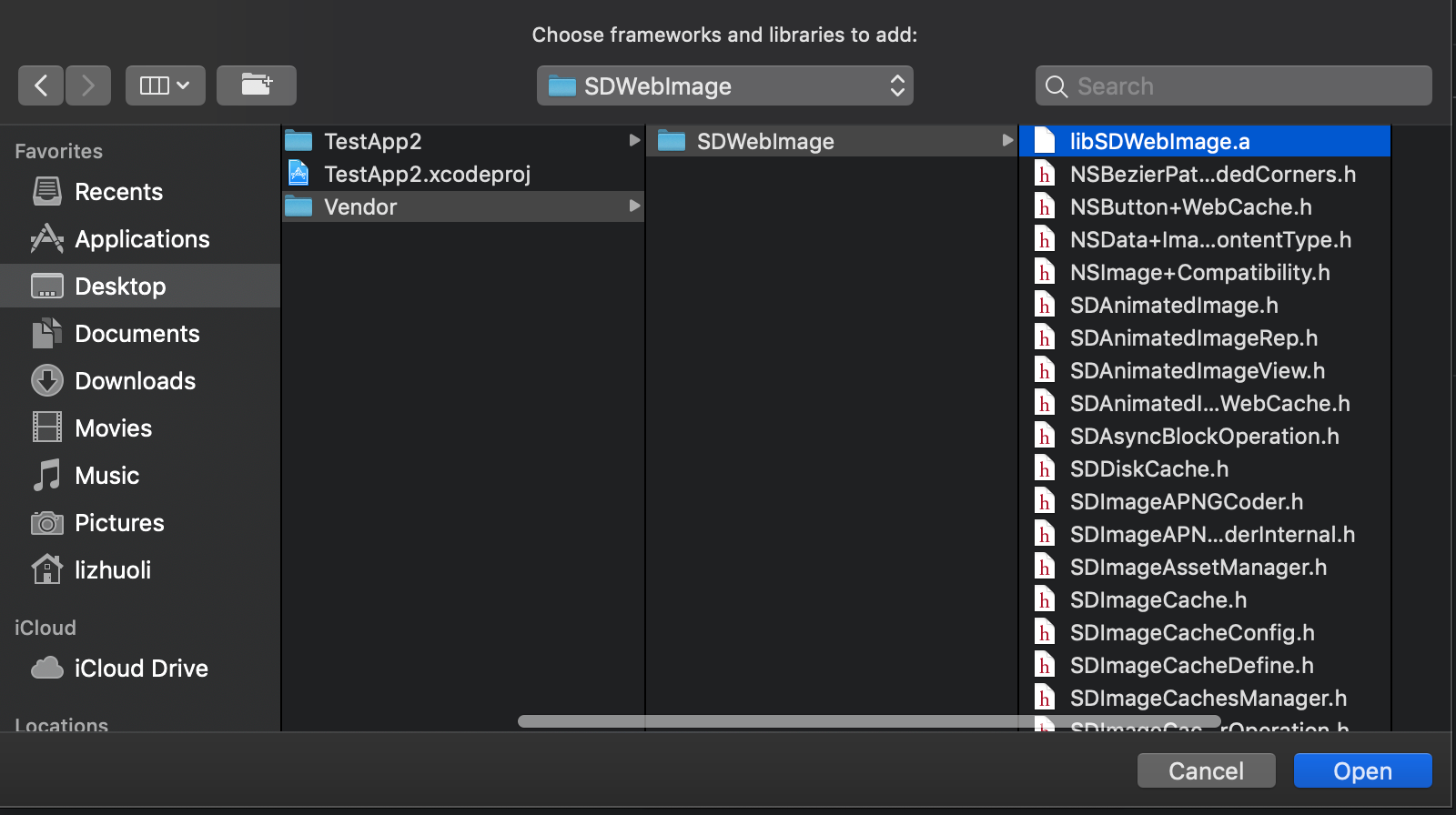
Open your application Xcode Project, click Linked Frameworks and Libraries. Select Add Other... and select the libSDWebImage.a.
After link, you need to specify the Header Search Path for headers. Check Build Settings's Header Search Path, add the Header Search Path, where there must be a SDWebImage parent directory of SDWebImage.h this umbrella header file.
The example above can using the following path.
$(SRCROOT)/Vendor
Then all things done if you use Static Library.
Reference
Technical Note TN2435 - Embedding Frameworks In An App
Using SDWebImage as Sub Xcode Project
You can also embed SDWebImage as a Sub Xcode Project using in your Xcode Project/Workspace. This can be used for some specify environment which does not support external dependency manager.
Clone the repository as submodule
To embed the Sub Xcode Project, you can simply add SDWebImage entire project using Git Submodule.
cd Vendor/
git submodule add https://github.com/SDWebImage/SDWebImage.git
Note: If your project don't using Git Submodule, just copy the entire repo of SDWebImage to that Vendor folder, and you can add to your own Version Control tools.
However, using Git Submodule can make it easy to upgrade framework version and reduce Git repo size.
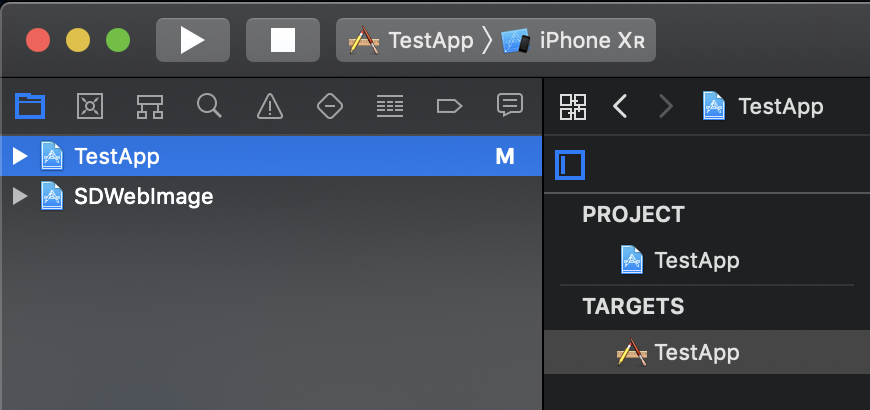
Add SDWebImage.xcodeproj into your Workspace/Project
Just drag the SDWebImage.xcodeproj you cloned, into your Xcode Workspace/Project 's Project Navigator.
For Xcode Workspace, you can put it the same level of your App Project.
For Xcode Project, you can put it inside your App Project.
Link to your App/Framework Target
To use SDWebImage, you should link the SDWebImage target.
Go to your App/Framework target's General page. Then click Lined Frameworks and Libraries, and add the SDWebImage.framework or libSDWebImage.a (Depends on your use case).
Then all things done.